
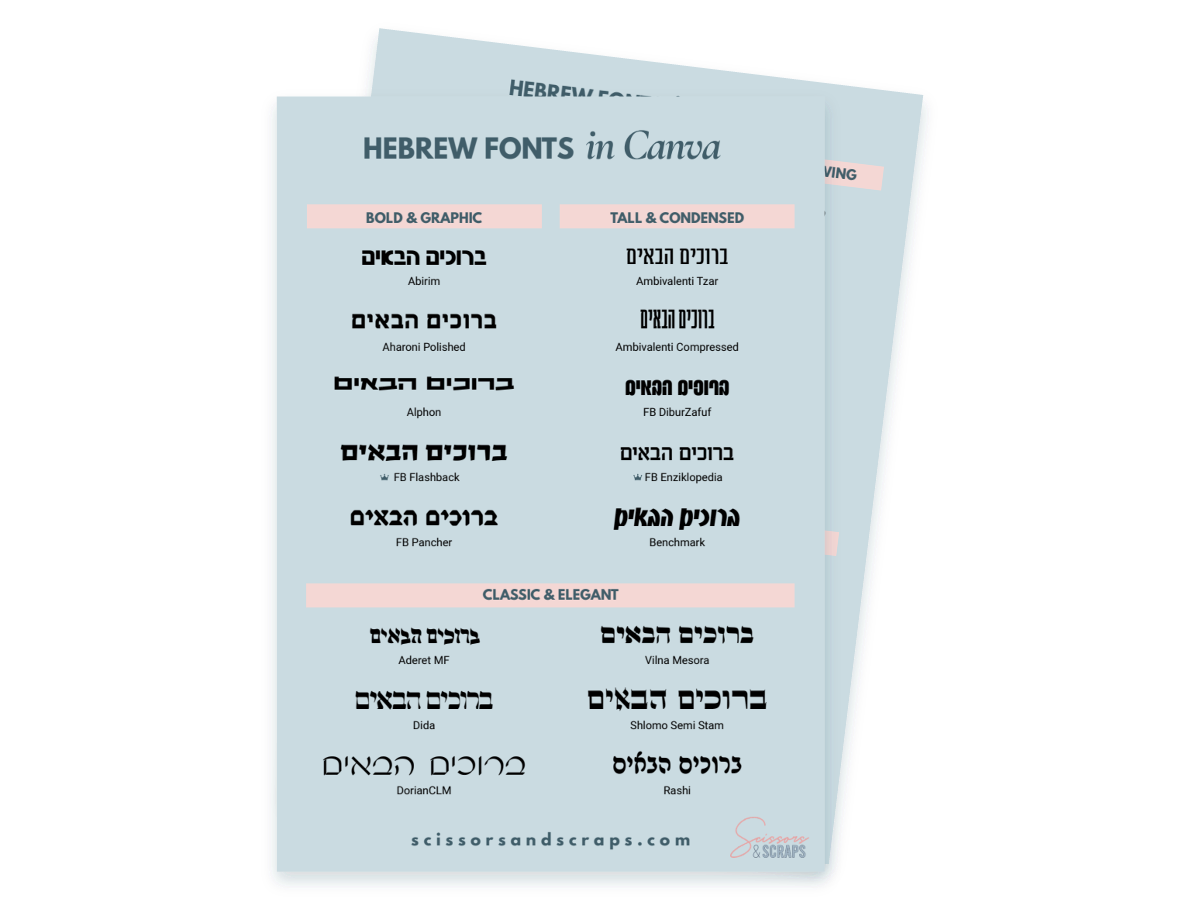
Wish you had more Hebrew font options for your Cricut projects? In this tutorial, I'll show you how to use Canva to access a wider variety of Hebrew fonts and bring your designs into Cricut Design Space — even with a free Canva account! We'll cover how to find Hebrew fonts in Canva, create and export your text, upload it into Cricut Design Space, and get it ready for cutting. I'll also explain the differences between the free PNG and Canva Pro SVG methods, plus when it's better to finish your design in Cricut rather than Canva. This is a follow-up to my original Hebrew fonts tutorial, with another easy way to create beautiful Hebrew lettering for your Cricut projects.
The quick walkthrough
- 1
Enable Hebrew typing on your computer
For full instructions on this, see my original video on Hebrew fonts for Cricut.
- 2
Canva
Type your Hebrew text into your Canva document, select it, and click on the font selector. Here you can either select Hebrew in the language filter, or simply type "Hebrew" into the font search bar. Either way, you'll see Cricut's large selection of Hebrew fonts, most of which are free. (The paid fonts are marked with a small crown). Make sure the font you choose is suitable for what you'll be using it for in Cricut. If you'll be cutting and weeding something small, make sure the font isn't too thin, detailed or textured.
- 3
Edit your text
If you want to adjust the size, spacing, curvature or anything else specifically to do with the basic text, do that now. For more detailed edits like more colors, layers or outlines, we'll leave that to do in Design Space, since it won't carry over so well from Canva. The exception is if you will be using Print Then Cut, in which case you can design as much as you want in Canva - take advantage of it's extensive library of free graphics, especially if you don't have a Cricut Access subscription! You also don't need to worry about the size of your chosen font or how detailed it is.
- 4
Download your design
Before you download, make your design as large as you can in Canva. Since we will be downloading it as a PNG, which is made up of pixels, we want to avoid fuzzy edges when we import it into Design Space, as those will cause a messy cut. If it is sufficiently large enough when you download it, you won't encounter this issue when you make it the size you want in Design Space.